Creating content on YouTube allows you to connect with viewers around the world.
In this article, I will show you what you need to know to start and grow a channel as a creator on YouTube. I’ll walk you through how to create a channel and customize a youtube channel with personal branding like a profile picture and channel banner.
How to Create a YouTube Channel
Learn how simple it is to get your YouTube account up and running, and how to optimize your profile for best visibility.
Creating a YouTube channel using your Google account
If you have a Google account, you can watch, share and comment on YouTube content. However, Google accounts don’t automatically create YouTube channels. Getting a new channel set up is a simple and quick process, though.
1. Go to YouTube and sign in
Head over to YouTube.com and click ‘sign in’ in the top right corner of the page:
Then log in using the Google account you’d like your channel to be associated with:
2. Head over to your YouTube settings
In the top right corner of the screen, click on your profile icon and then click “Create a channel.”
3. Create your channel
Next, you’ll have the option to create a personal channel or a create a channel using a business or other name. For this example, we’ll choose the “Use custom name” option, which is recommended for small businesses and brands:
Next, you’ll name your channel.
After this step, you’ll have the chance to further customize your channel. You’ll see options for:
- Uploading a profile picture
- Adding a description of your channel
- Adding links to your sites – this can include custom links to a website or blog as well as social links to Instagram or Twitter
- Further settings for your YouTube channel – profile picture, description, and links
Congratulations! You’ve just created a new YouTube channel!
How to customize a youtube channel
After you create your YouTube channel, there are many ways to customize a youtube channel through YouTube Studio. Here’s what to do if you need to change your YouTube channel video order, edit your home page, change your channel description, and more.
When you set up a YouTube channel, you make decisions about the description and other aspects of your channel. It’s easy to make changes at any time and customize a youtube channel. Here’s how it works.
How to Add a YouTube Profile Picture and Channel Banner
Let’s take a look at the branding of YouTube channels now. Click the branding tab on the YouTube customization screen to view all of your options. Many options are available to assist you build up a reputation on YouTube by adding logos to various portions of your channel.
We’ll begin with the profile photo for your YouTube channel. A new picture may be added by clicking the ‘Change’ or ‘Remove’ buttons on the customization screen, which are located at the bottom of the screen.
As far as YouTube profile images go, there are several things to bear in mind. A circular picture will be shown on YouTube even when you’re submitting a square image. Using the uploader on YouTube may force you to crop your profile photo; avoid placing anything of importance in the corner of the image.
With your channel’s banner, there are even more considerations. To begin with, it must be compatible with three different media types: television, PC, and mobile. Your banner picture will be seen in various sizes and resolutions when uploaded to YouTube. You may resize a picture by clicking and dragging the corners of it.
The complexity of the image is another factor to keep in mind. Your channel’s message should be presented with as little text as possible while still allowing for some breathing area in the design. As a side note, you may change both your profile photo and your channel banner by clicking the camera symbol on your homepage. This will take you back to the YouTube Studio’s customize a youtube channel page.
How to Customize Your YouTube Channel’s ‘About’ Section
Viewers will visit this area to learn more about you and your stuff.
In your short bio, talk directly to your target audience.
At least, you should:
1. Explain the value people gain from watching your content.
2. Include keywords related to your content.
When you’re finished writing your channel bio, go to the basic info tab and paste it in the text box below ‘Channel name and description’
How to Add Links to Your YouTube Channel Banner
You can add links to your Youtube channel using the following steps.
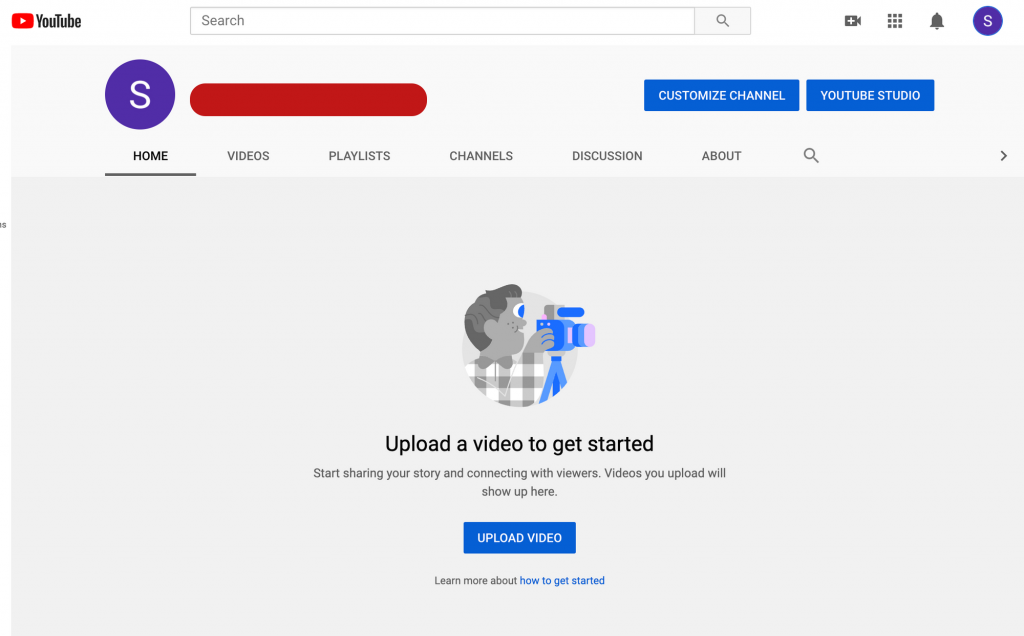
1. Click on ‘Customize Channel.
2. Select the ‘Basic Info’ tab.
3. Copy the link from your website. …
4. Paste this URL into the ‘Links’ tab.
5. Click on ‘Publish’ to save changes.
How to Add a Trailer to YouTube Channel
Now, let’s take a look at the video spotlight feature. You can find it under the layout section.
This section allows you to post a trailer, a video that introduces you and your content, to your channel. It automatically plays when a visitor visits your channel’s homepage, making it a useful feature to include.
YouTube provides a number of useful options for displaying alternative trailers to certain users. For instance, you may display one trailer to non-subscribers and a separate one to subscribers.
How to Add a Contact Email to Your YouTube Channel
Interested in working with other creative minds? Gather questions from the audience? To begin, you’ll need an email address that people may use to contact you.
To begin, you’ll need an email address that people may use to contact you.
Important Advice: Use a different email address for your channel’s communication instead of your YouTube account’s. For hackers, this may be a backdoor. Set up a new email address just for YouTube-related inquiries instead.
To add an email address to your channel.
Go to the basic details tab, copy your email address and paste it into the ‘Contact details’ header text box.
CONCLUSION.
I hope you find this guide on how to customize a youtube channel usefully! Here at yoor.rs, we share various educational content that might be of help to anyone. If you want more content like this keeps visiting my page for more insightful content just like this one.